- Programming Environment
- Microsoft Visual Studio 2017
- Operating System
Windows 11
Windows 10 64 bit - Processor
Intel or AMD with SSE2 support
Intel Core i5 or higher recommended - RAM
8 GB - Graphics Card
Certified graphics card and driver
NVIDIA Quadro or AMD FirePro Recommended - Disk Space
5 GB or more - SOLIDWORKS 2024
- SOLIDWORKS SDK
- .NET Framework 4.8 and above
2. Visual Studio 2017 C# .NET Programming Sample
The following is an example of how to create a project called ‘Cube’ assuming that SolidWorks and Visual studio is installed.
2.1 Create .Net Project.
Run Microsoft Visual Studio
Click ->New->Project to launch the new Project dialog Window. Select C# in the installed on the left side and click Console App in the middle of the window.
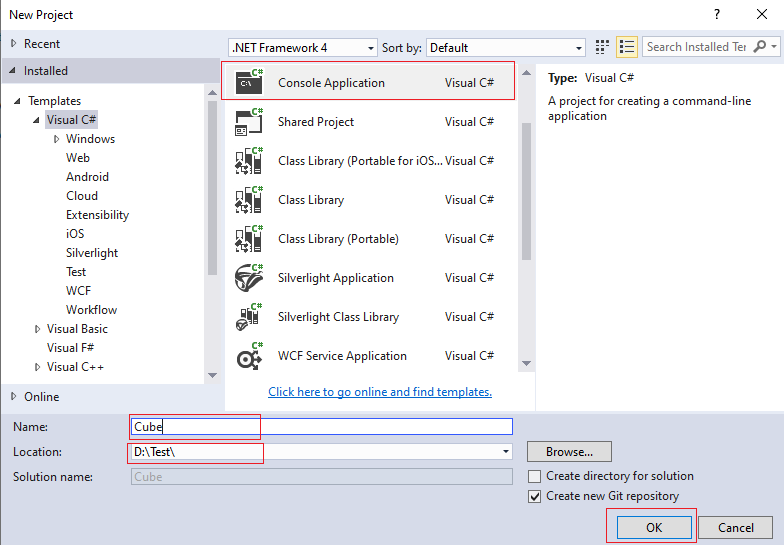
Finish Creating New Project
Click OK button to Finish Creating new project Cube.
2.2 Set Reference Library
Add Reference
In visual studio find the ‘Cube’ project in the Solution Explorer, right click on it, and select Add –>Reference.
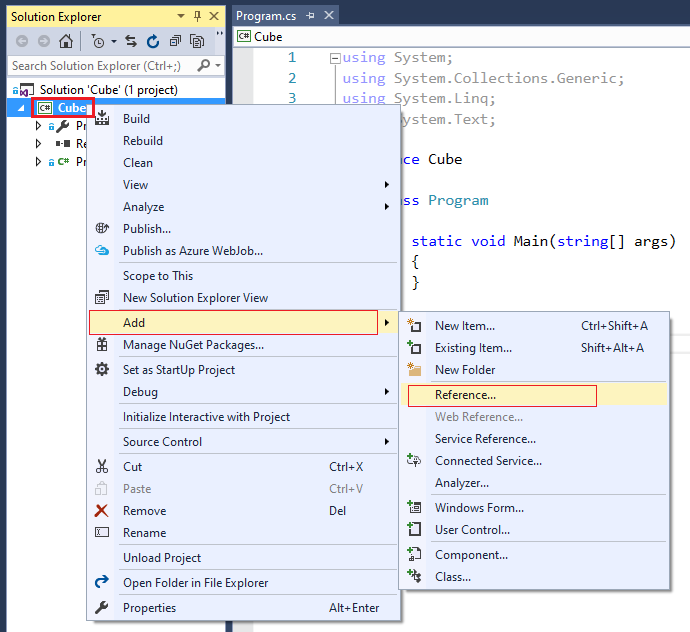
A reference manager dialog Window pops up, Click Browse as shown below.
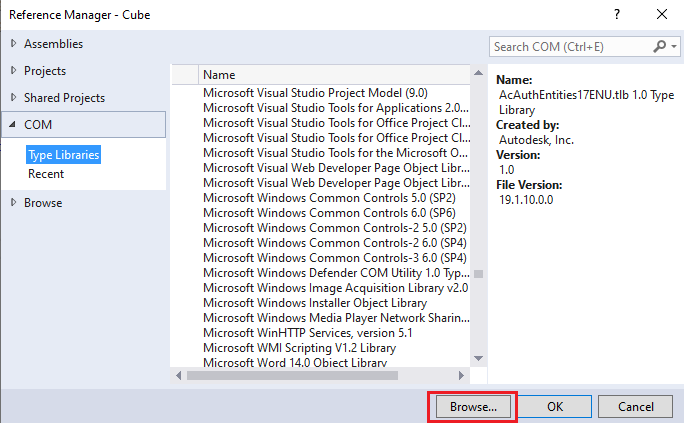
Choose and Add Reference File
From the SOLIDWORKS installation directory, e.g. ‘< SOLIDWORKS installation directory>\api \redist’ select ‘SolidWorks.Interop.sldworks.dll’ and ‘SolidWorks.Interop.swconst.dll’ and then add them by clicking Add button.
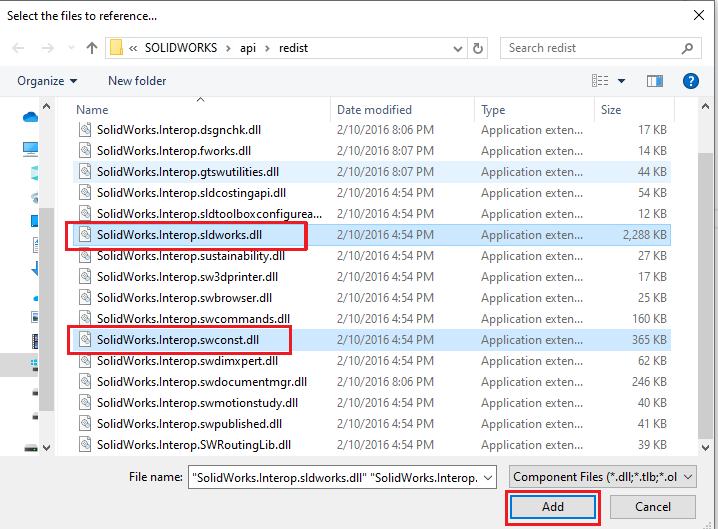
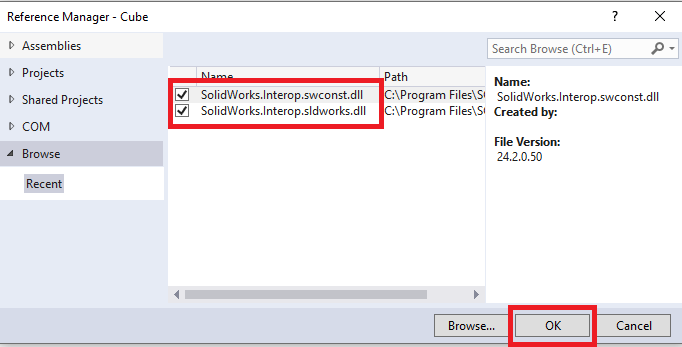
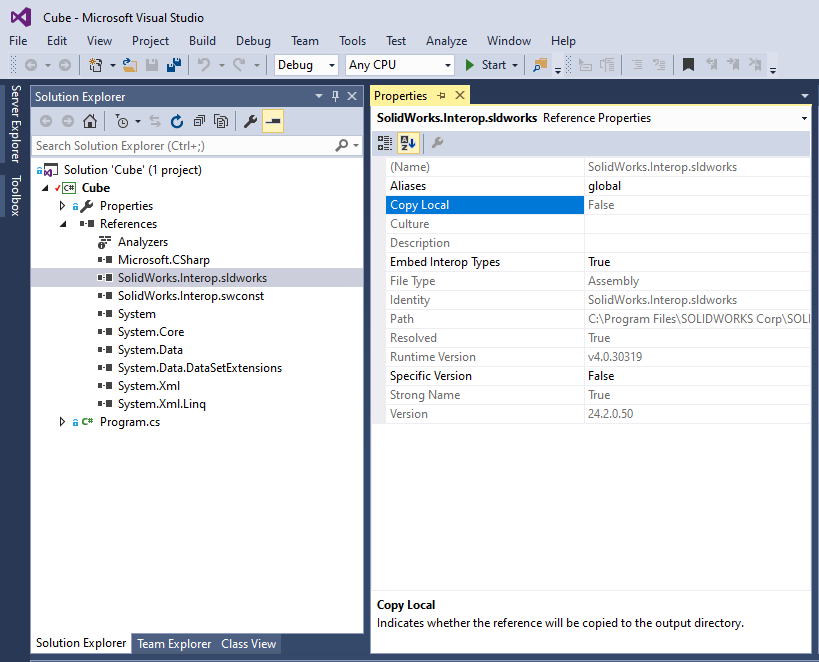
After adding the files, right-click added ‘SolidWorks.Interop.sldworks.dll’, and ‘SolidWorks.Interop.swconst.dll’ files one by one and select Properties at the context menu, the Reference Properties palette pops up. Set the value of Copy Local property to False. The following screenshot shows how to change Copy Local property of ‘SolidWorks.Interop.sldworks.dll’.
2.3 Add Code
using SolidWorks.Interop.sldworks;
using SolidWorks.Interop.swconst;
using System;
using System.Runtime.InteropServices;

namespace Cube
{
    class Program
    {
        static void Main(string[] args)
        {
            SolidWorksTest solidWorksTest = new SolidWorksTest();
            solidWorksTest.CreateCube();
        }
    }

    class SolidWorksTest
    {
        SldWorks swApp;

        const string sldWrksProgramId = "SldWorks.Application";

        private SldWorks ConnectToSW()
        {
            try
            {
                return (SldWorks)Marshal.GetActiveObject(sldWrksProgramId);
            }
            catch (System.Exception)
            {
                return (SldWorks)Activator.CreateInstance(
                    Type.GetTypeFromProgID(sldWrksProgramId)
                ) ?? throw new Exception(
                    "Failed To Create Solidworks Session"
                );
            }
        }

        public void CreateCube()
        {
            swApp = ConnectToSW();
            swApp.Visible = true;

            // Make sure we have a part open
            string partTemplate = null;

            ModelDoc2 model = swApp.NewPart();

            FeatureManager featMan = default(FeatureManager);

            partTemplate = swApp.GetUserPreferenceStringValue(
                (int)swUserPreferenceStringValue_e.swDefaultTemplatePart
            );

            model = (ModelDoc2)swApp.NewDocument(
                partTemplate,
                (int)swDwgPaperSizes_e.swDwgPaperA2size,
                0.0,
                0.0
            );

            model.InsertSketch2(true);

            model.SketchRectangle(
                0,
                0,
                0,
                0.1,
                0.1,
                0.1,
                false
            );

            // Extrude the sketch
            featMan = model.FeatureManager;

            featMan.FeatureExtrusion(
                true,
                false,
                false,
                (int)swEndConditions_e.swEndCondBlind,
                (int)swEndConditions_e.swEndCondBlind,
                0.1,
                0.0,
                false,
                false,
                false,
                false,
                0.0,
                0.0,
                false,
                false,
                false,
                false,
                true,
                false,
                false
            );
        }
    }
}
By following these steps, you can seamlessly integrate SOLIDWORKS API with Visual Studio, enhancing your development workflow and enabling the creation of powerful custom applications.
We’re here to help you boost your productivity and achieve your SOLIDWORKS customization goals!