Color Specific Element Types
Apply selected colors to elements belonging to a specific Revit element type to make important model information easier to distinguish visually.
A Revit plugin that enables users to color elements of a specific type or all elements of selected types, with the flexibility to recolor elements that have already been colored.
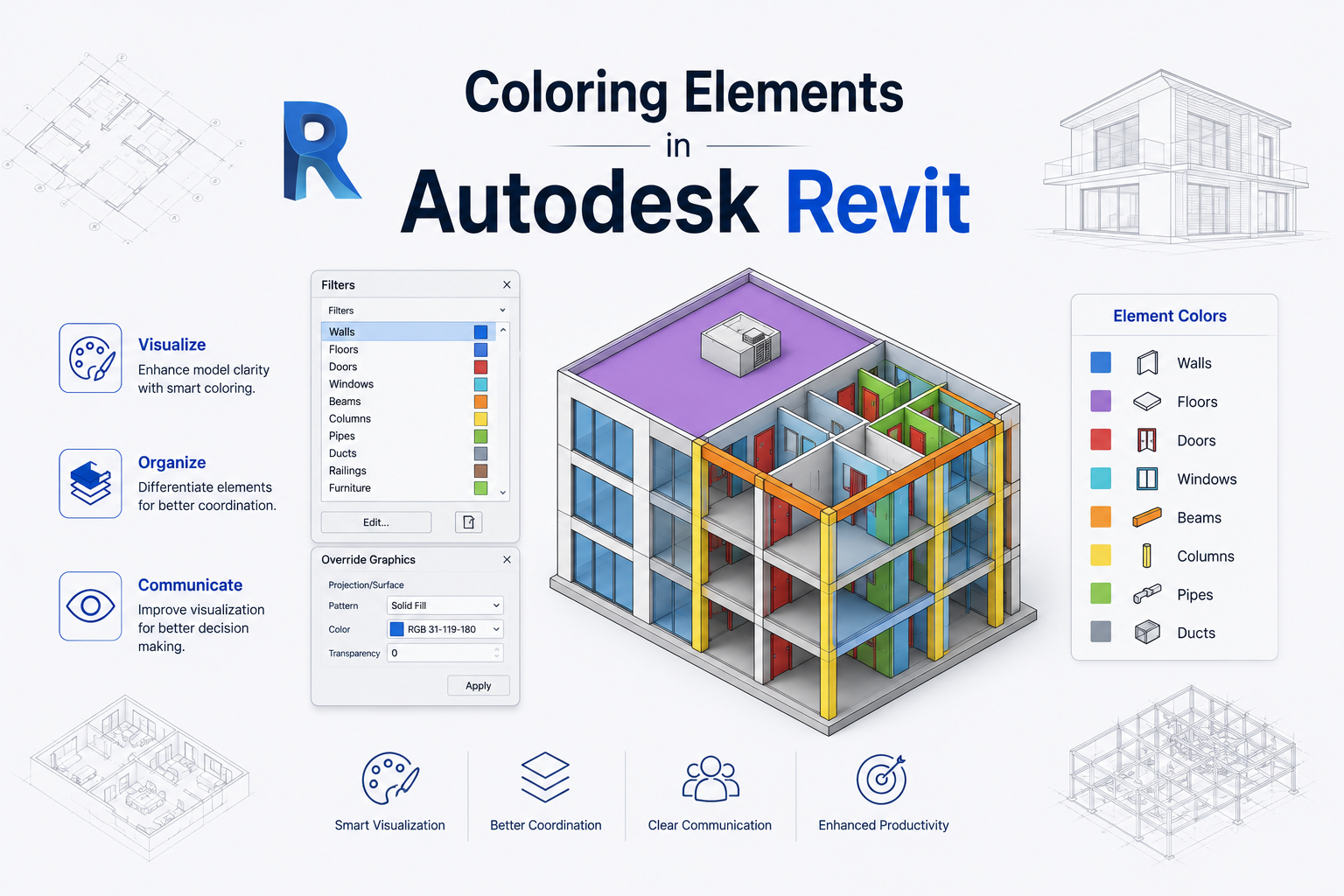
Coloring elements in Autodesk Revit is a common task that helps improve visualization, organization, and clarity within BIM models. The Coloring Elements in Autodesk Revit plugin streamlines this process by providing an easy way to apply colors to elements within Revit projects.
The plugin enables users to color elements of a specific type or apply colors to all elements across selected types. This provides greater flexibility when organizing and visually distinguishing different elements within a BIM model.
Users can also recolor elements that have already been colored, making it easier to update and manage visual representations as project requirements change. The tool helps improve model clarity while simplifying the element coloring workflow.
See how the Coloring Elements plugin makes it easier to color, organize, and visualize Revit elements for clearer and more efficient BIM workflows.
Simplify model visualization by applying and updating colors across specific element types and selected Revit elements.
Apply selected colors to elements belonging to a specific Revit element type to make important model information easier to distinguish visually.
Apply coloring workflows across multiple selected Revit element types to support more efficient model organization and visualization.
Apply a selected color to all elements belonging to chosen element types for consistent visualization across the Revit model.
Update the colors of elements that have already been colored, making it easier to revise model visualization as project requirements change.
Provide flexible color assignment so users can visually distinguish different categories or groups of Revit elements according to project needs.
Use element-level coloring to make specific model components easier to identify, review, and communicate within a BIM environment.
Use consistent element coloring to organize complex Revit models and make important groups of elements easier to recognize.
Improve visual clarity by distinguishing different element types and groups through an intuitive coloring workflow.
Streamline the process of selecting elements and applying colors without requiring complex manual visualization steps.
Provide an intuitive interface that makes element coloring accessible to architects, BIM professionals, engineers, and everyday Revit users.
Minimize repetitive manual color changes and make it easier to update visual representations across Revit projects.
Integrate the coloring workflow directly into Autodesk Revit projects so users can manage model visualization within their existing BIM environment.
Help teams communicate design information more clearly by using color as a visual aid for reviewing and understanding BIM models.
Support repeatable color management workflows that allow users to update visual representations as project requirements evolve.
Provide focused element coloring functionality through a lightweight Revit plugin that complements existing BIM workflows.
Reduce repetitive visualization tasks so architects, engineers, and BIM professionals can spend more time on design and coordination activities.
Explore how the Coloring Elements plugin simplifies Revit model visualization by selecting element types, applying colors, and updating previously colored elements for clearer BIM workflows.
Simplify the process of applying and updating colors across Autodesk Revit models while improving visualization, organization, and project clarity.
Spirangle delivers CAD customization, automation, integration, migration, plugin development and API solutions across leading CAD platforms and their native development technologies.









All product names, logos and trademarks are the property of their respective owners and are used only to identify supported software platforms.